User Manual
How to use RC Clean — the self-service laundry app. Everything works on your phone.
1. Get started
The app shows you, live, which washers and dryers are free. You can also get a message when your laundry is done, collect loyalty points towards a free cycle, read shop news and contact us if something goes wrong.
- No account needed just to look at the machines.
- With an account you can get "laundry ready" alerts, collect points, read announcements and use Support.
- Open the app on your phone's browser. For one-tap access, add it to your home screen (section 11).
Finding your way around
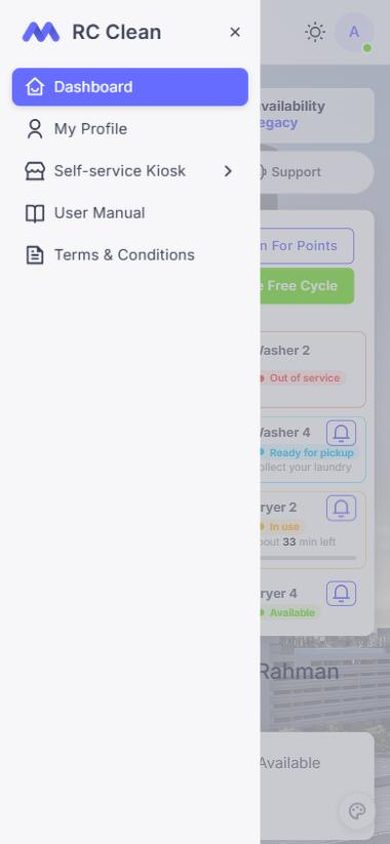
Tap the ☰ menu at the top left. Dashboard is your home screen, My Profile holds your details, and Self-service Kiosk opens Loyalty Programme, Notifications and Support. User Manual (this page) and Terms & Conditions are at the bottom of the menu.
2. Create your account
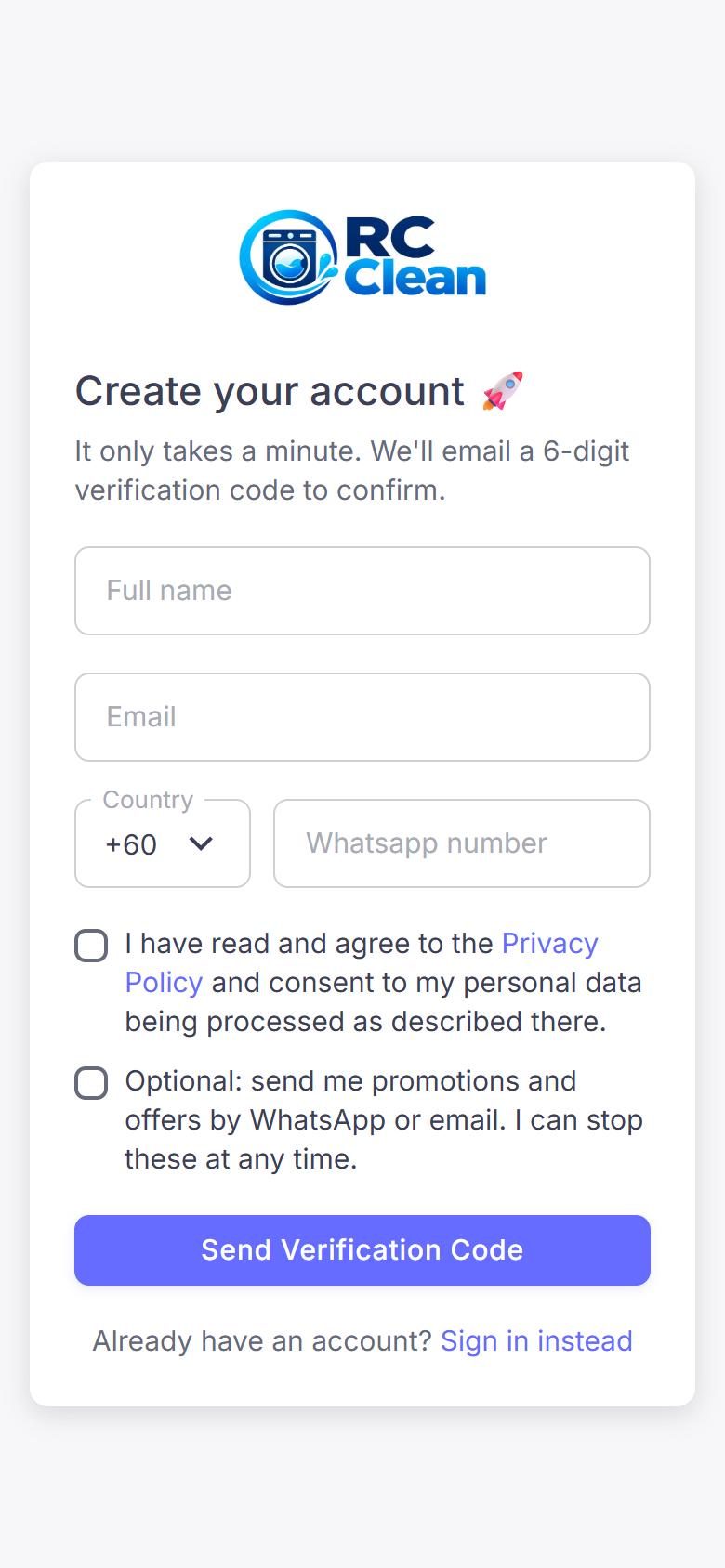
- On the front page tap Create an account.
- Type your full name, email and WhatsApp number.
- Tick the box to agree to the Privacy Policy. You cannot create an account without it.
- Optional: tick the second box if you would like promotions and offers. You can leave it empty and change your mind at any time.
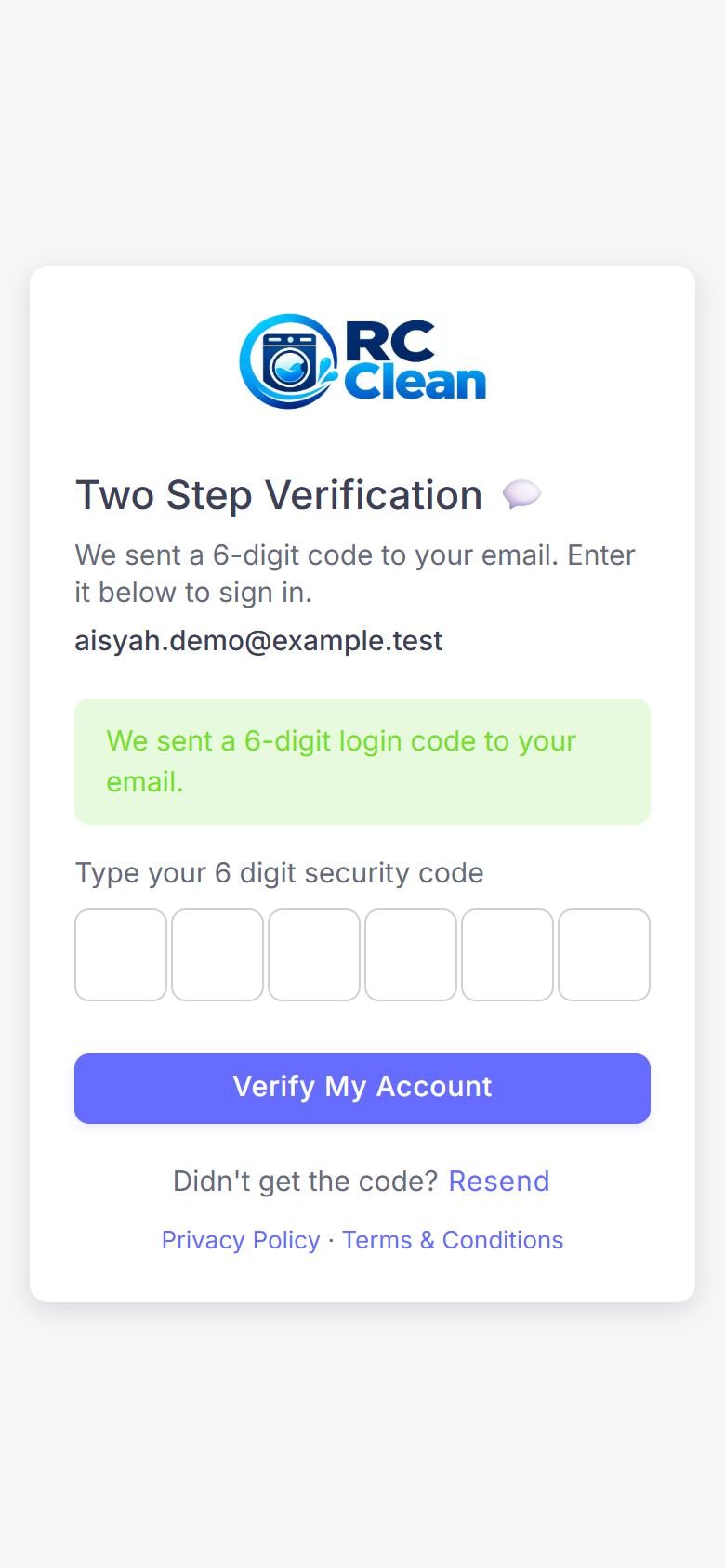
- Tap Send verification code. We email you a 6-digit code.
- Type the code in the six boxes and tap Verify my account. You are in.
3. Sign in
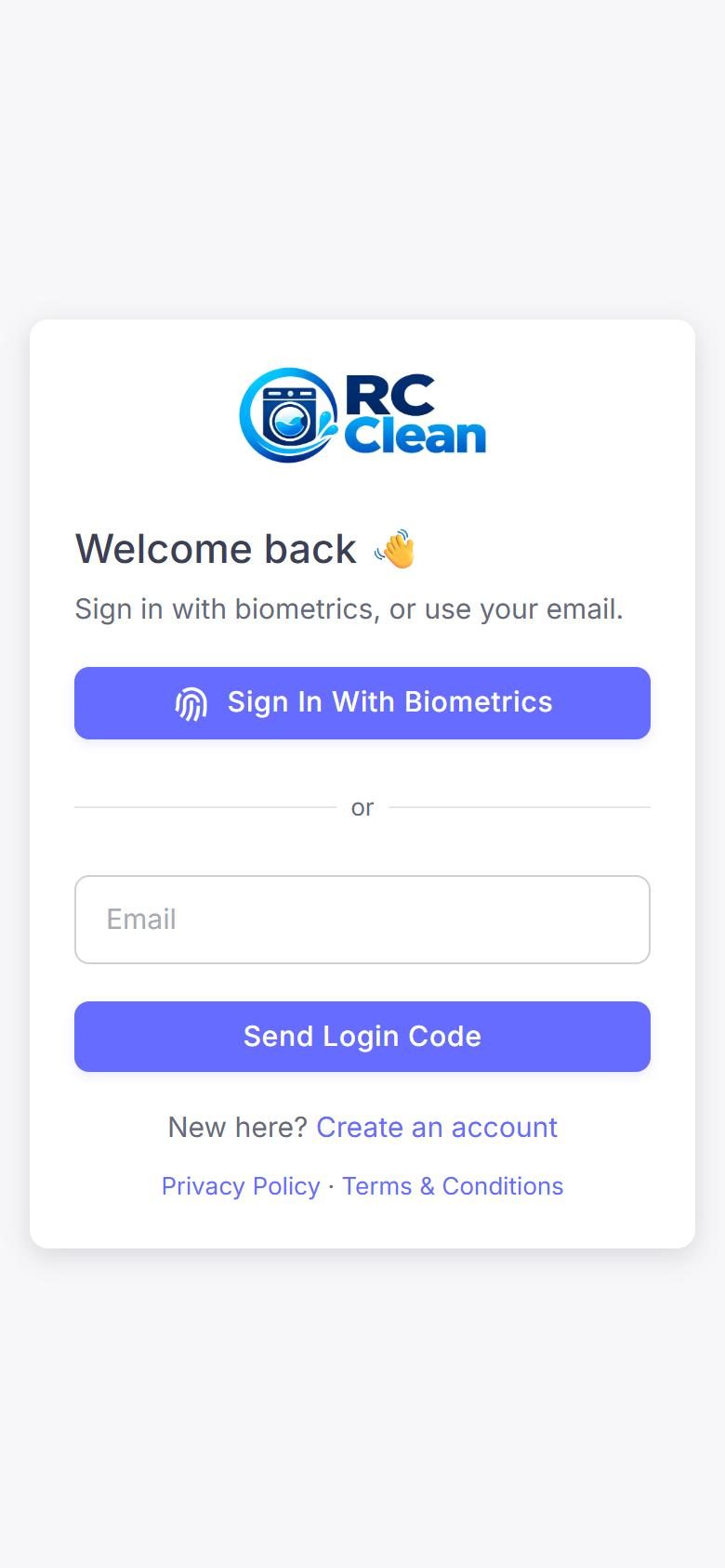
With an emailed code
- Tap Sign in, type your email and tap Send login code.
- Open the email, then type the 6-digit code and tap Verify my account.
With your fingerprint or face
After you register your phone once (see section 11), tap Sign in with biometrics and confirm with Face ID, Touch ID or fingerprint. We never receive your fingerprint or face; your phone only tells us it was you. How it works and what is safe.
4. See which machines are free
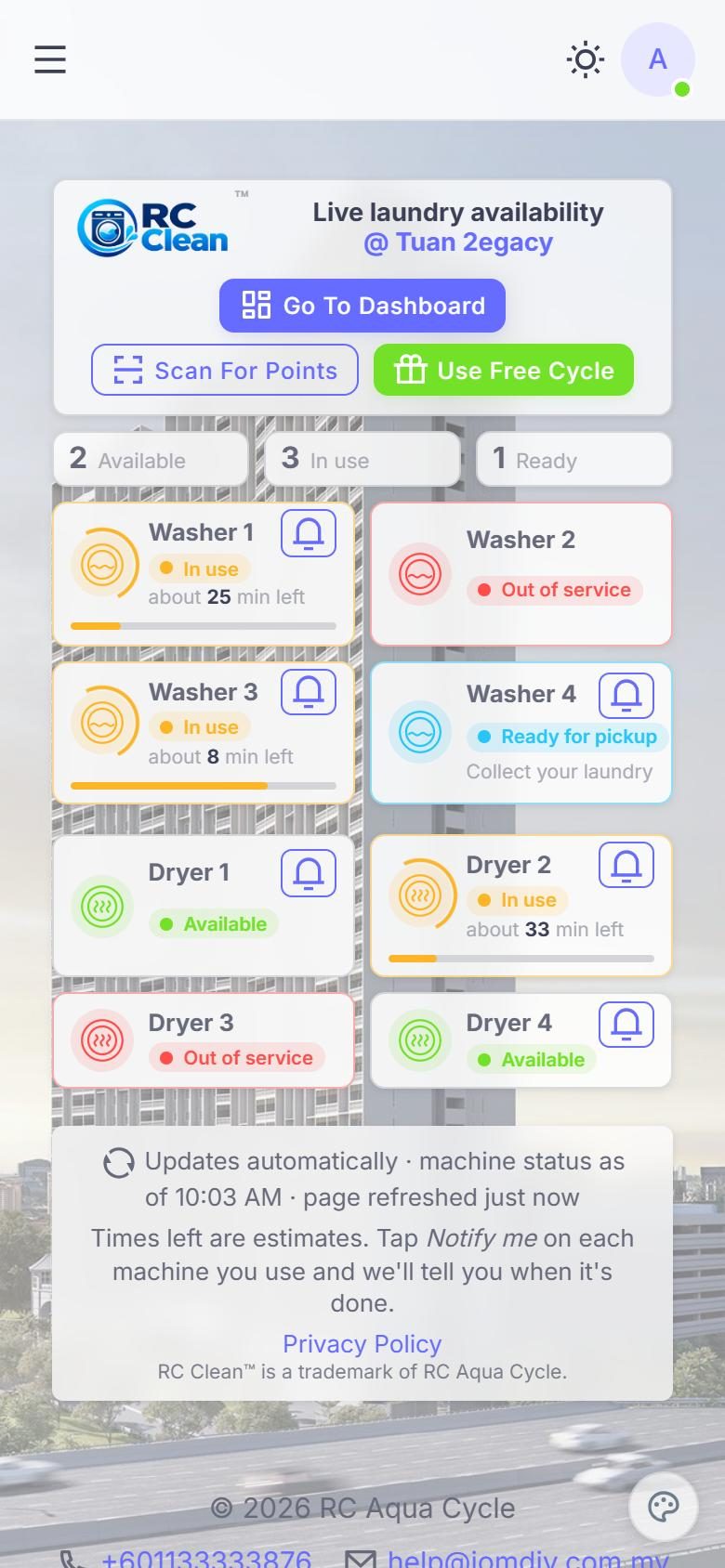
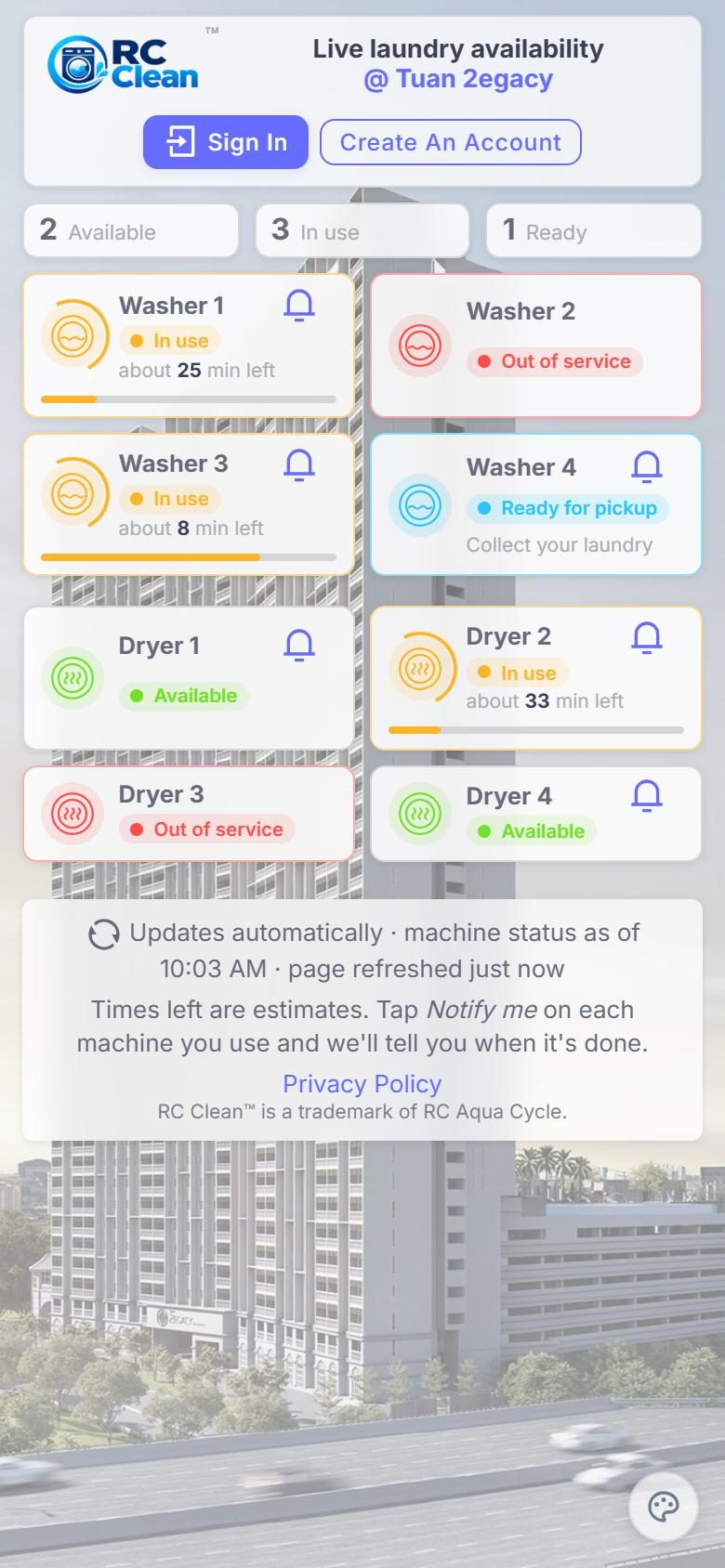
The front page lists all washers and dryers and updates by itself, so you do not need to refresh it.
- Available — free to use right now.
- In use — running. The bar and "about 28 min left" are an estimate.
- Ready for pickup — the cycle has finished and the laundry is waiting. Please collect it.
- Out of service — not working. Please use another machine.
The three boxes at the top count how many machines are available, in use and ready.
5. Get told when your laundry is done
- Start your wash or dry as usual.
- On the front page, tap the bell on that machine's card.
- Go about your day. When the cycle finishes you get a message in the app and by email, a "laundry ready" banner appears on the front page, and your phone vibrates if it is open.
You can follow up to 8 machines at once. If a machine is not used, the alert goes away by itself after a few hours.
6. Earn points
You earn 1 point for every RM1 you pay for a cycle. Points are added after the cycle finishes, because that is when we know the amount. To collect them you must scan the machine within 5 minutes of starting your cycle.
- Put your laundry in and pay for the machine as usual (coins or the QR code).
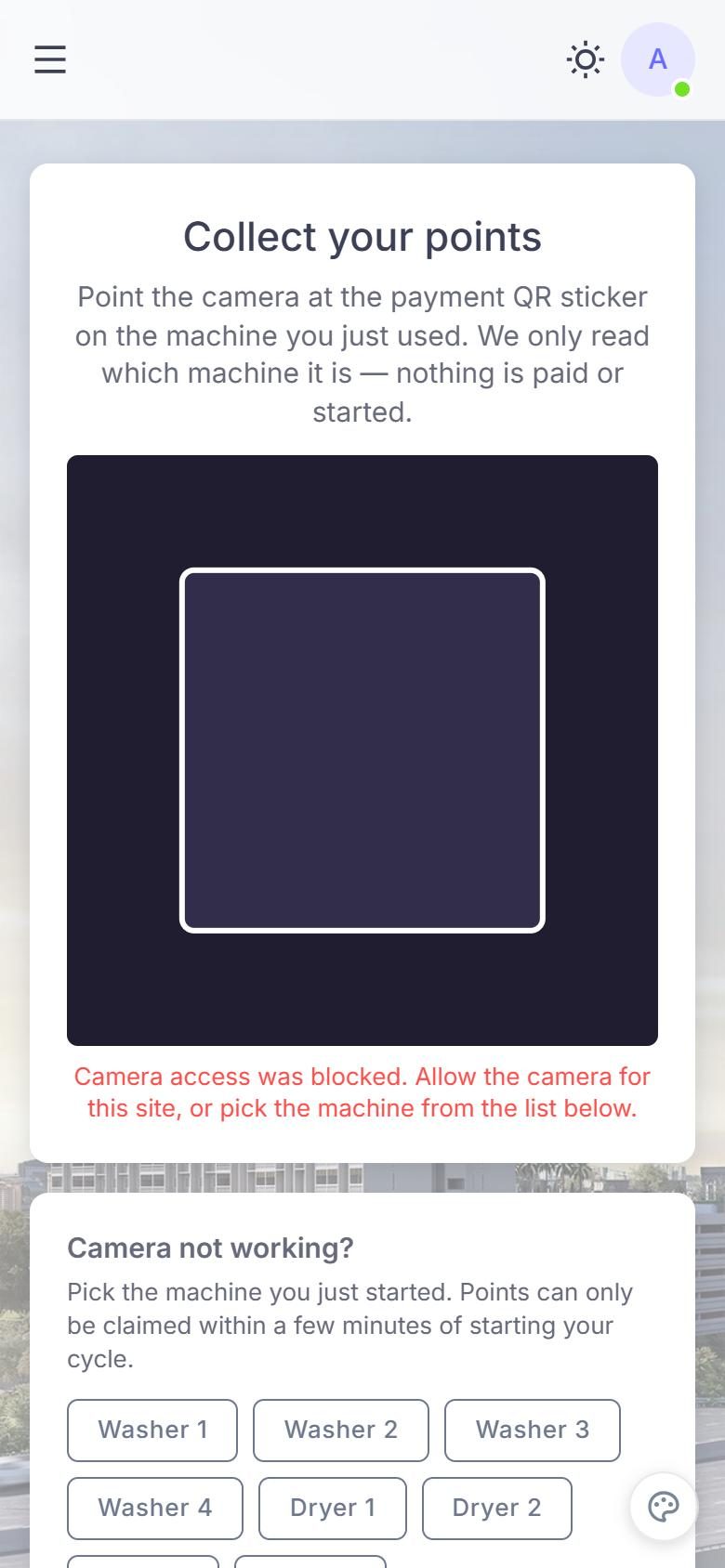
- Within 5 minutes, open the app and tap Scan for points.
- Point your phone camera at the payment QR sticker on the machine you just started. The app only reads which machine it is. Nothing is paid or started by scanning. If the camera does not work, pick the machine from the list under the camera.
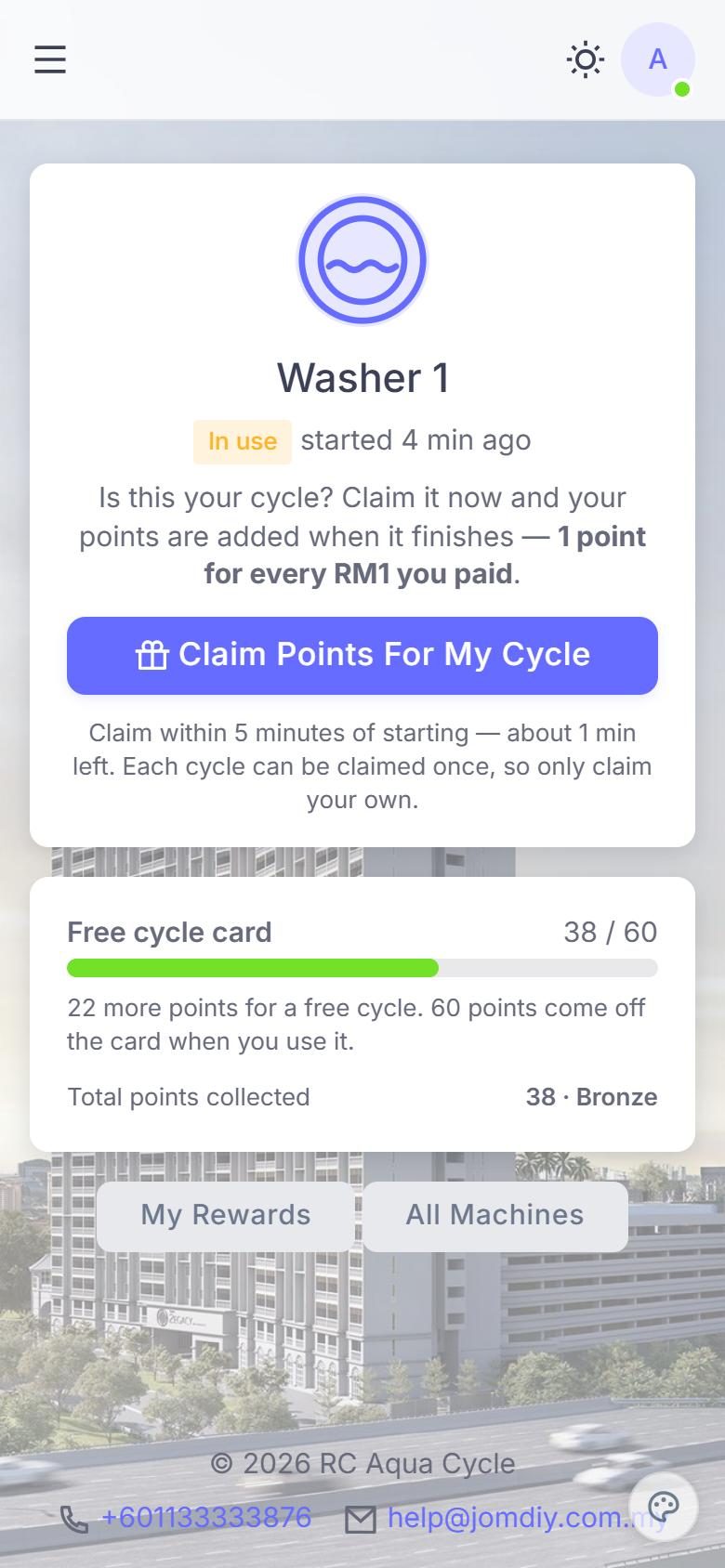
- The machine's page opens. Tap Claim points for my cycle.
- You see "Claimed". Your points are added when the cycle finishes (usually within a few minutes after it ends), and you get a notification.
7. Your free cycle card
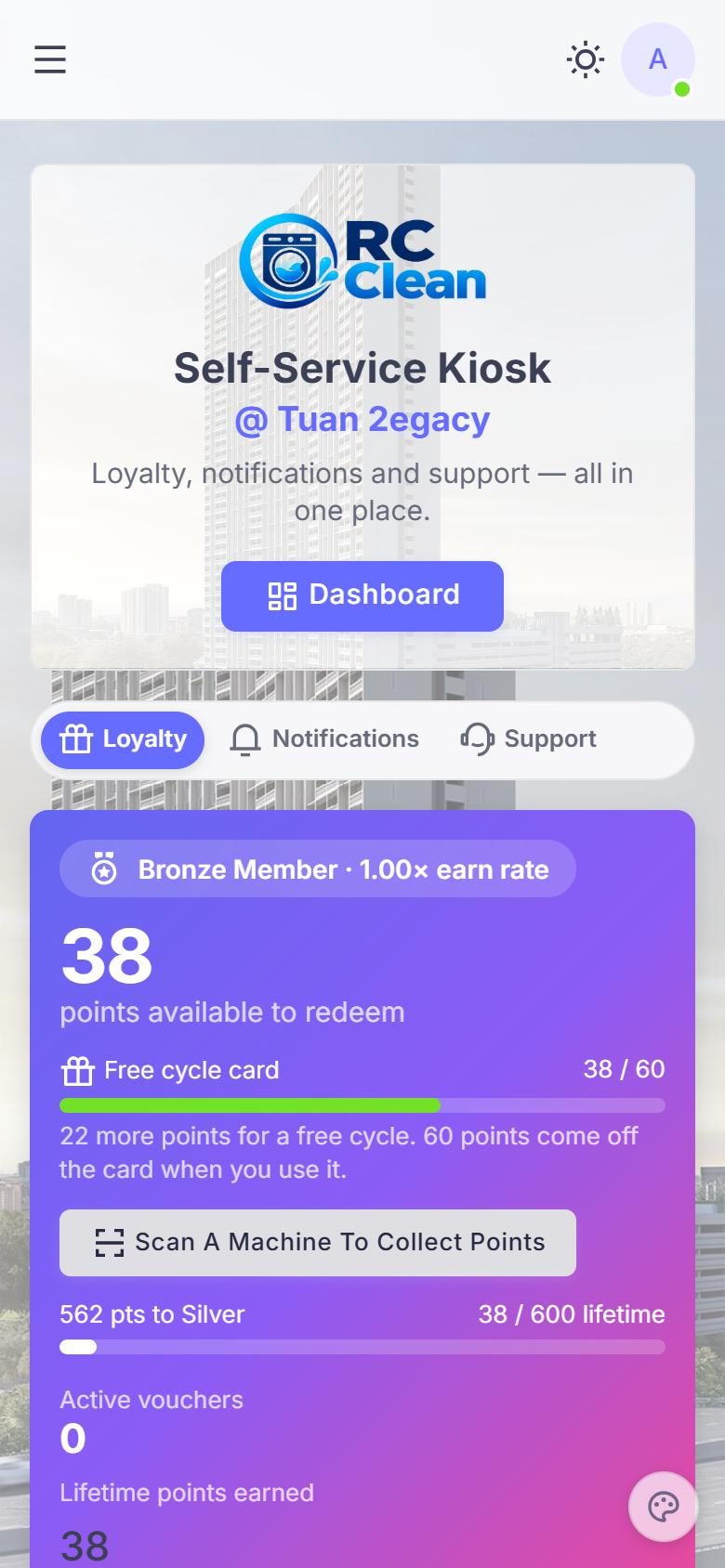
Open Loyalty from the menu to see where you stand.
- Free cycle card — your points towards the next free cycle, for example "38 / 60". Every 60 points is one free cycle. When you use one, 60 points come off the card.
- Total points collected — everything you have ever earned. It never goes down.
- Tier — you start at Bronze. At 600 total points you become Silver and earn 1.25× points on every cycle.
- New members get a small welcome bonus of points.
Below the card you can see the history of points added and spent.
8. Use a free cycle
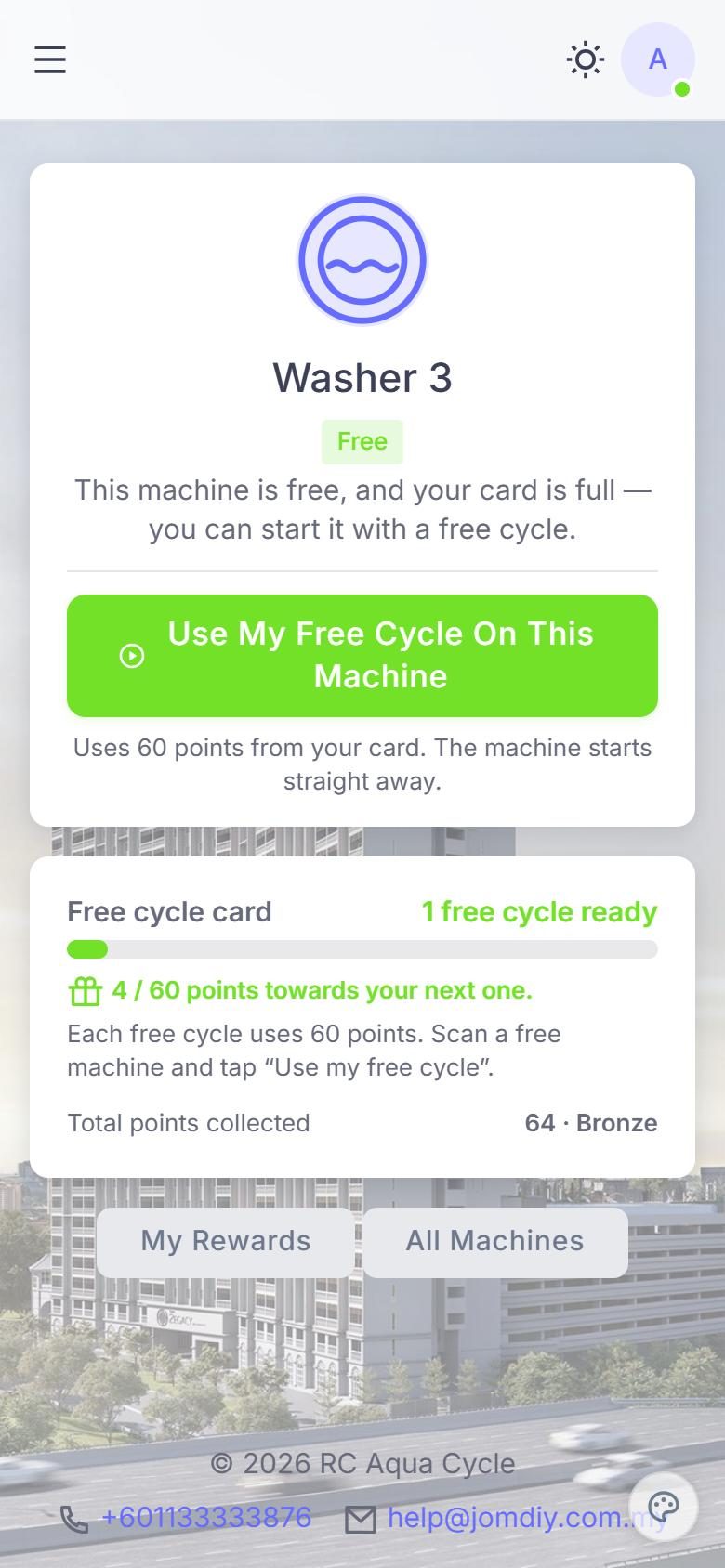
When your card reaches 60 points, it says "1 free cycle ready".
- Choose a machine that is free and put your laundry in. Close the door.
- Tap the green Use free cycle button, or Scan for points, and scan the QR sticker on that machine.
- On the machine's page tap Use my free cycle on this machine and confirm. 60 points come off your card and the machine starts straight away.
9. Notifications
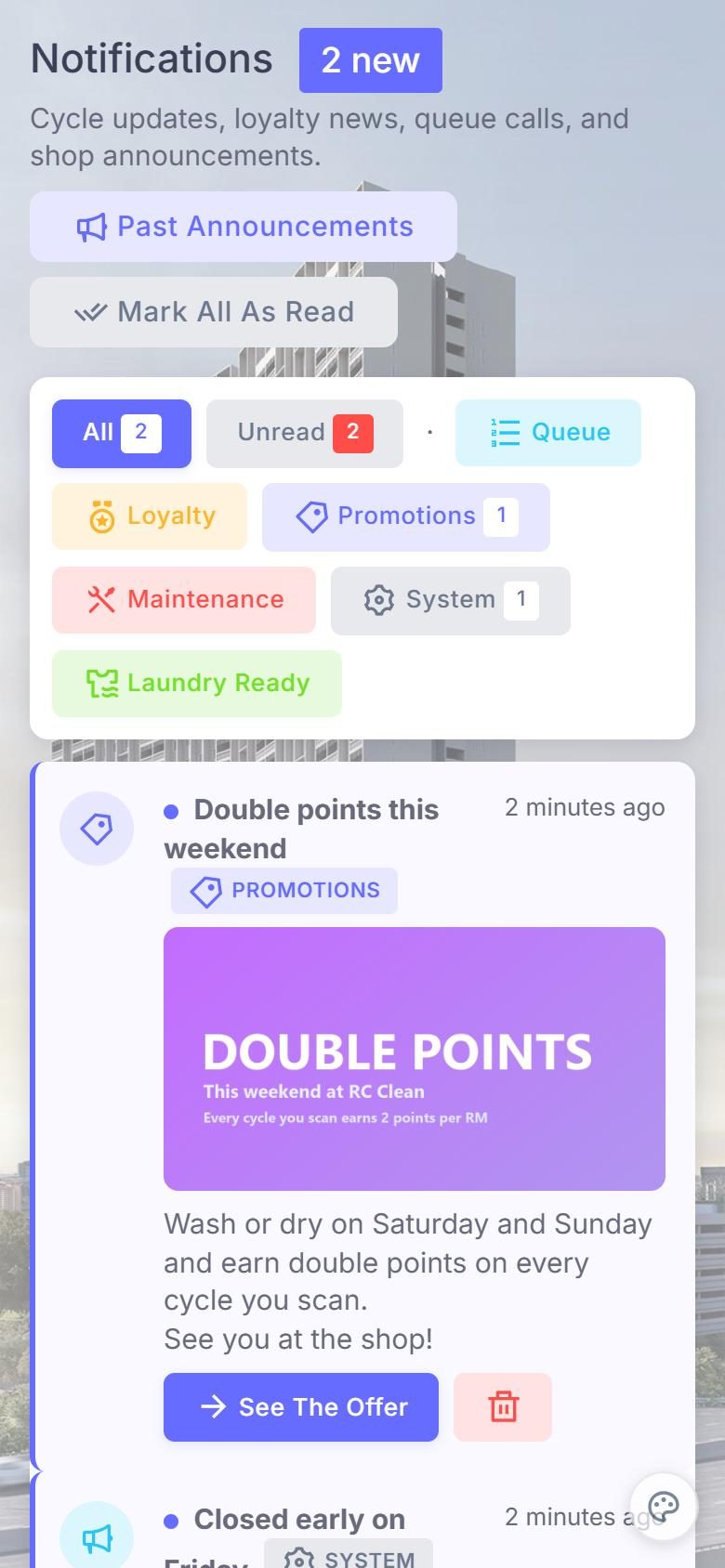
Open Notifications from the menu. This is your inbox for:
- Laundry ready alerts from the bell.
- Loyalty messages, such as points added.
- Announcements from the shop: promotions with posters, and notices such as an early closing.
- Replies from our team to your Support messages.
New items have a dot. Tap Open or Mark read, use the coloured chips to filter by type, or tap Mark all as read. Past announcements lists everything the shop has announced, even older messages and ones you deleted.
Choose what you hear about
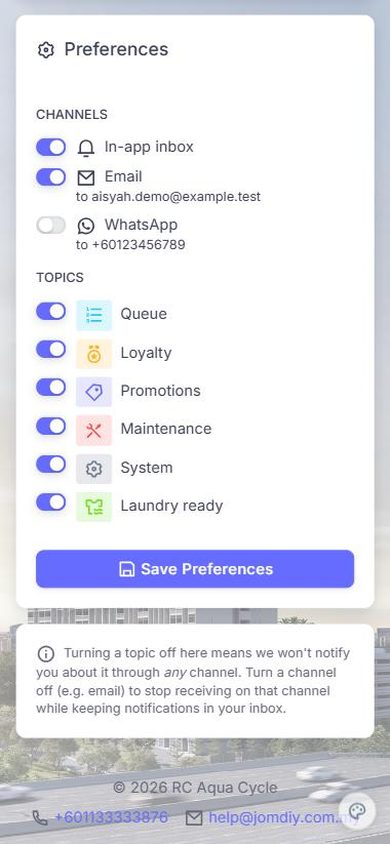
On the same page, the Preferences box lets you switch each channel (in-app inbox, email, WhatsApp) and each topic on or off, then tap Save preferences. Turn Promotions off to stop promotional messages. Turn Email off to stop emails but keep messages in your inbox.
10. Support: complaints and suggestions
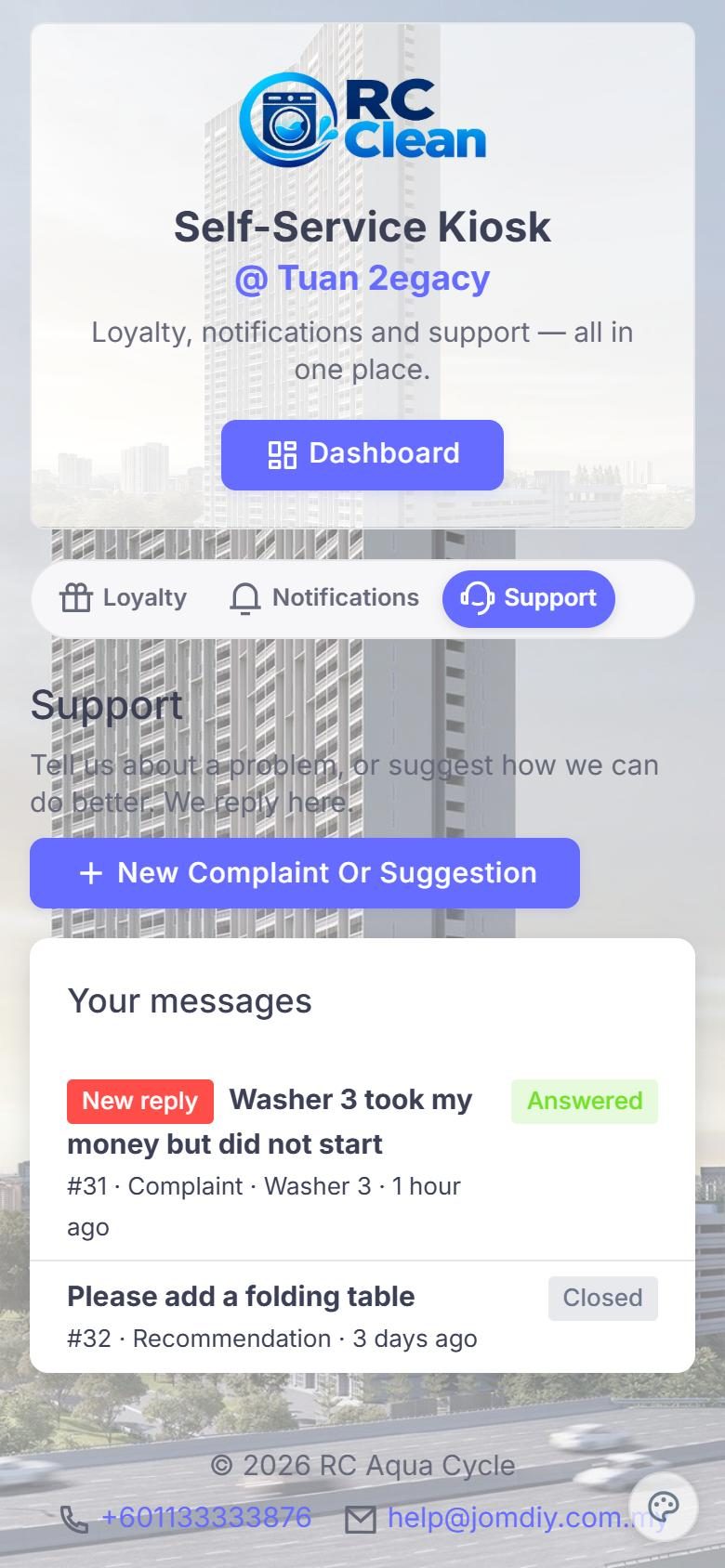
Something went wrong, or you have an idea? Tell us from Support in the menu. A person on our team reads and replies.
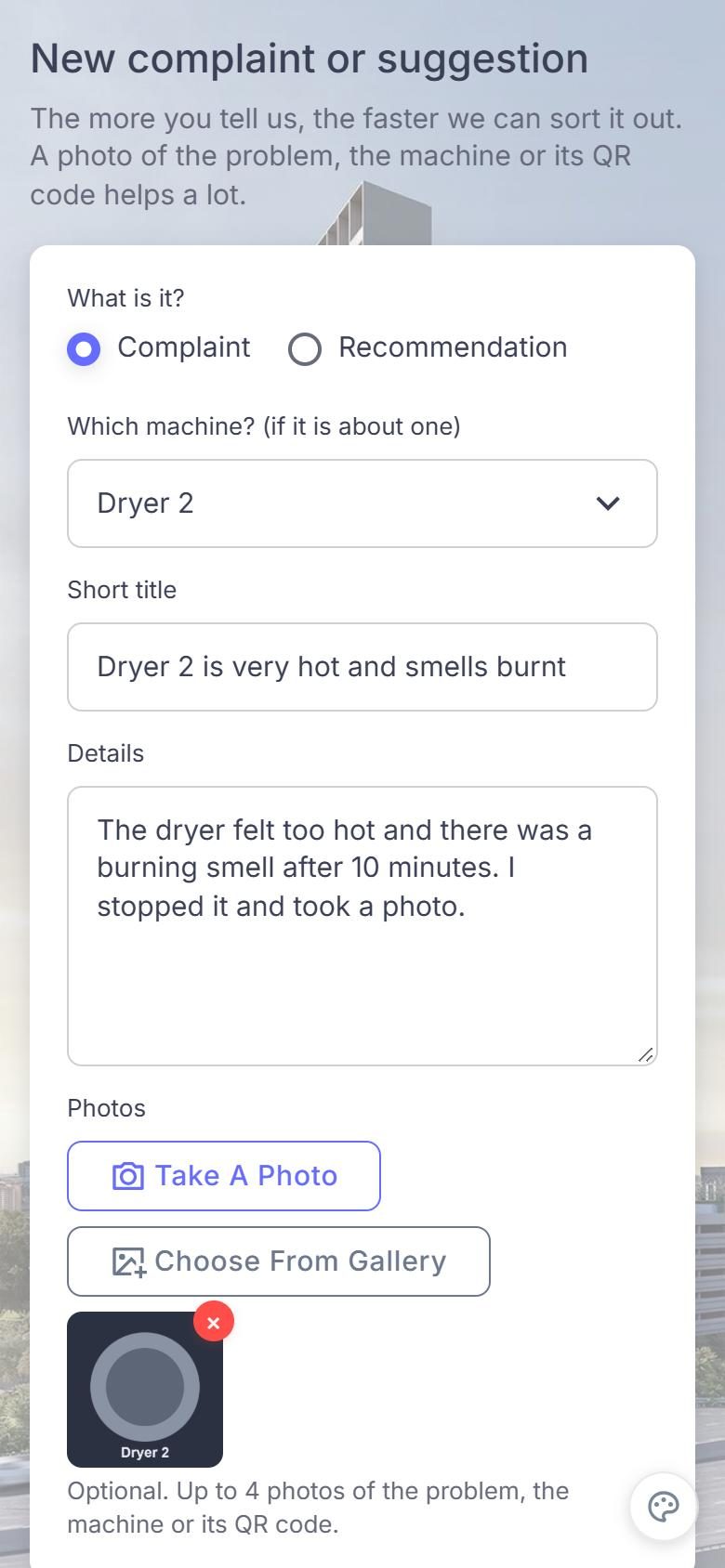
- Open Support and tap New complaint or suggestion.
- Choose Complaint or Recommendation.
- If it is about one machine, choose it from the list.
- Write a short title and the details: what happened, when, and how much you paid.
- Add photos (up to 4): tap Take a photo to open your camera, or Choose from gallery for pictures you already have. Good photos: the problem, the machine, its screen or its QR sticker. Please do not include other people or your own documents.
- Tap Send.
Follow your messages
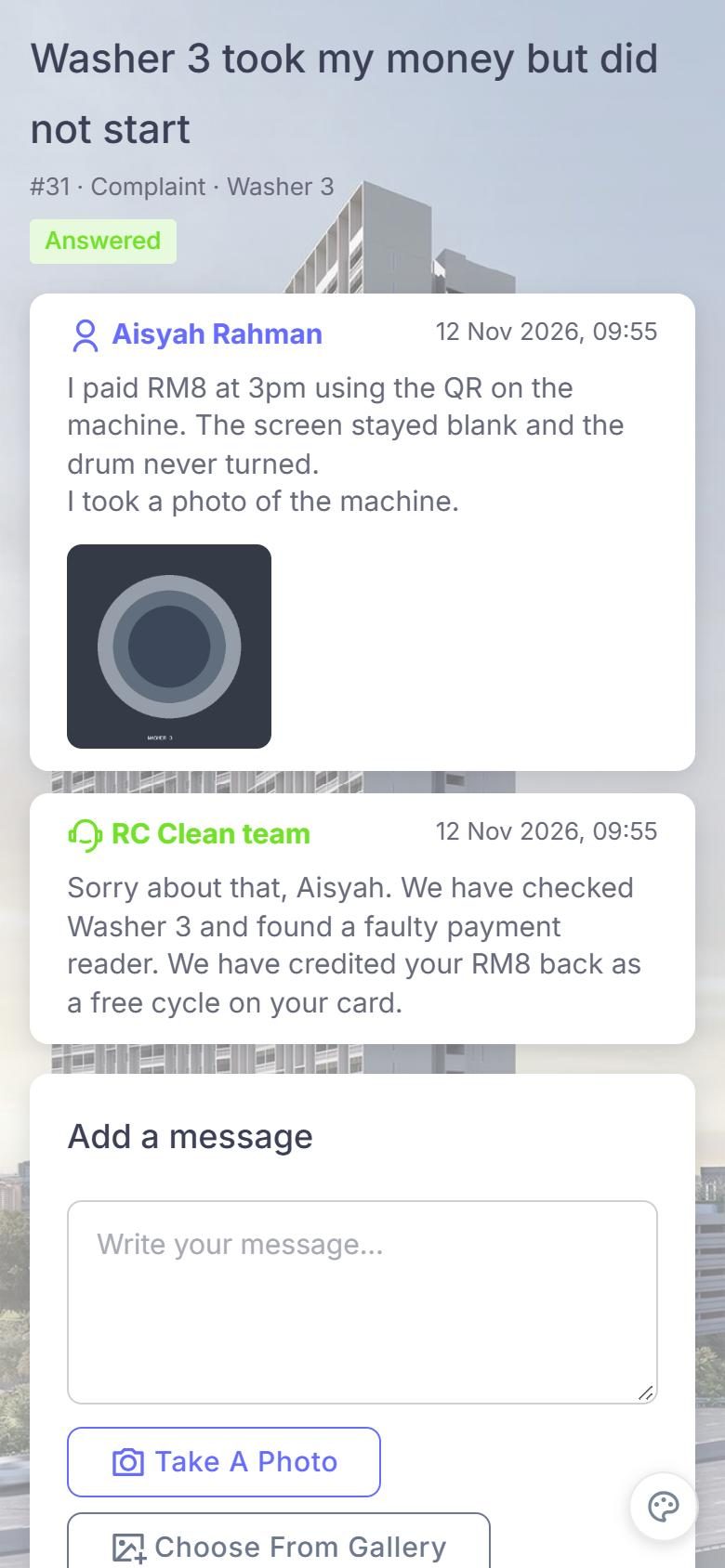
Your messages stay under Your messages with a status: Waiting for us Answered Closed. A red New reply shows when we have answered. You also get a notification and an email. Open the message to read the reply, add more details or photos, or answer back. Writing again on a closed message reopens it.
11. Your profile
Open My Profile from the menu to:
- change your name and WhatsApp number, and add an optional address, then tap Save changes;
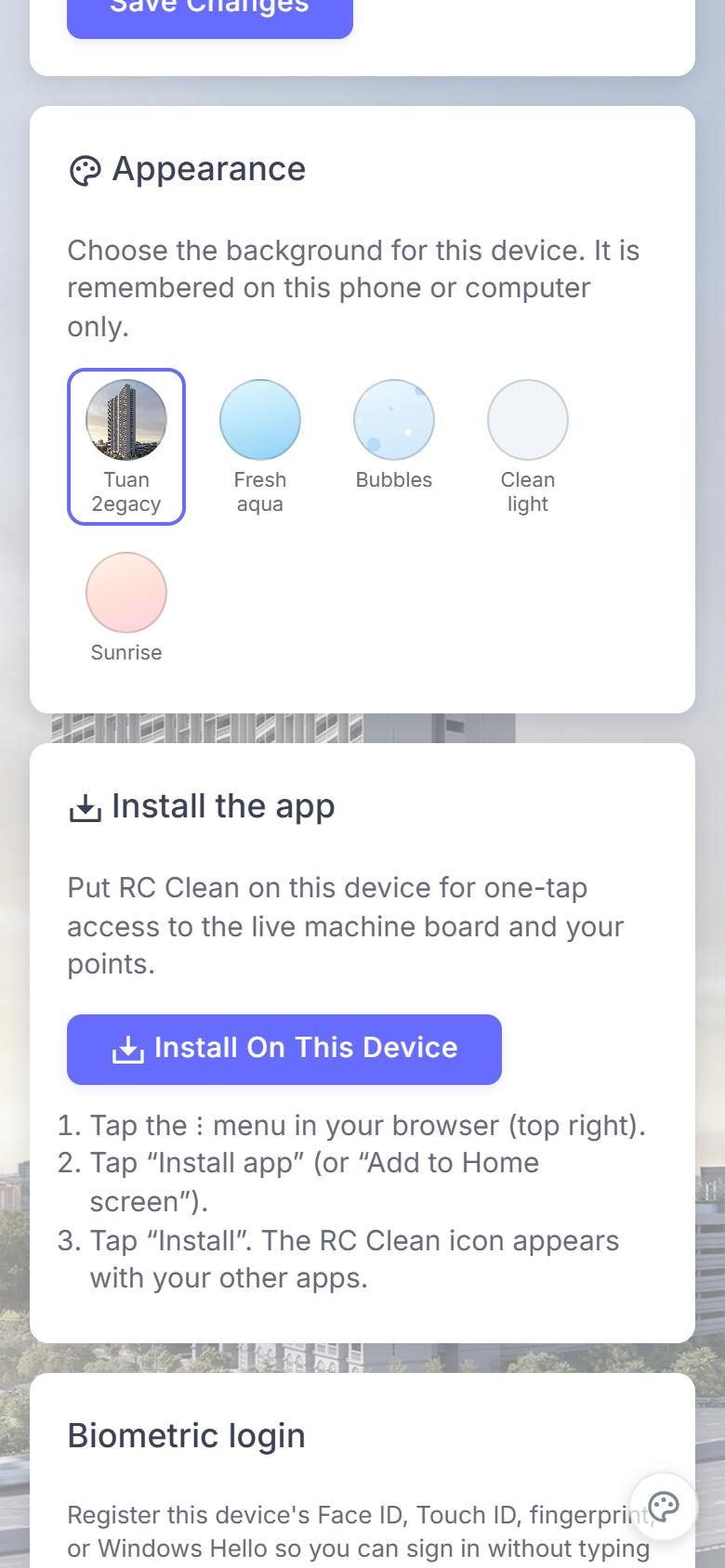
- change the background of the app for this phone (under Appearance, or with the round palette button at the bottom right of the page);
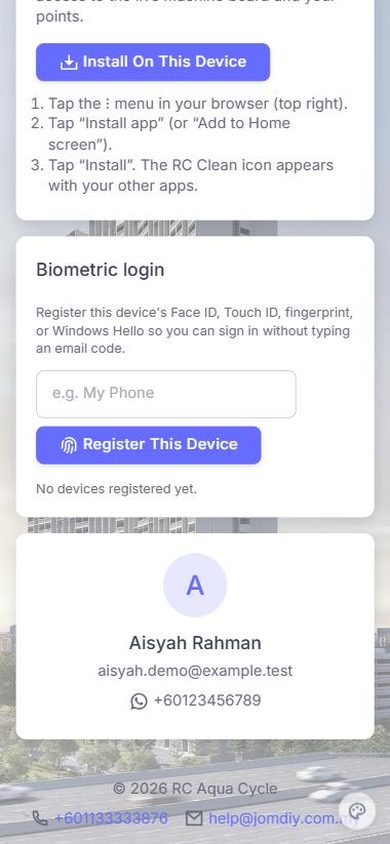
- install the app on your phone;
- register this phone for biometric login.
Add the app to your home screen
Tap Install on this device. If your phone does not show an install button: on Android open the browser's ⋮ menu and tap Install app (or Add to Home screen); on iPhone tap the Share button in Safari and choose Add to Home Screen. The RC Clean icon appears with your other apps.
Worried about security? Read Is it safe? for what installing and biometric sign-in do and do not do.
Turn on fingerprint or face sign-in
Under Biometric login, give this phone a name (for example "My phone") and tap Register this device, then follow your phone's prompt. Next time, tap Sign in with biometrics. You can register more than one device.
12. Questions and answers
Need more help?
Use Support in the app, or contact RC Clean:
- Email: help@jomdiy.com.my
- Phone: +601133333876